Introduction
Mighty School is a modern, all-in-one School Management System built with Flutter and Laravel. It is designed for schools, colleges, and educational institutions to manage daily academic and administrative activities efficiently.
The system provides student and teacher management, class and subject organization, attendance tracking, exams and results, fees management, online classes, and detailed reports — all from a single powerful platform.
Installation on Live server
The installation of this script is super easy. If you can install normal php based scripts on your server, you can install our script. We will tell you how to install this script step by step on a server.
If you extract the zip file, you will see that there are total three folders.
The folder names are: sql, documentation and MainFiles. The "MainFiles >> install-api-code-v.x.zip is the main laravel source codes.
Creating Database using Cpanel
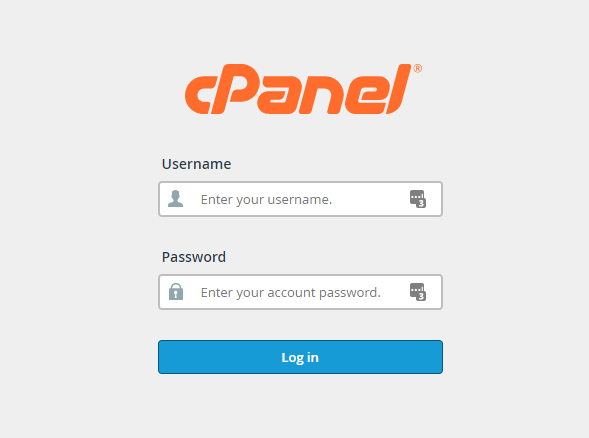
1. Login to your hosting's cpanel using the login information. You will see an interface like this:
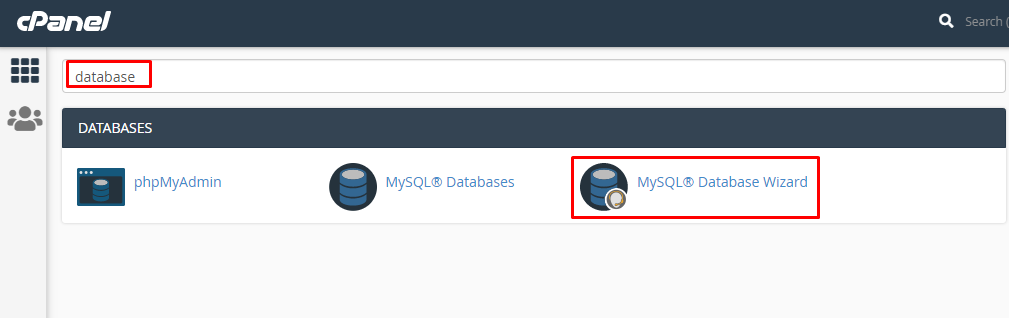
2. You will get a search section in the cpanel. Search there by writing the word "database". You will get some options. Click on "MySQL® Database Wizard" option.
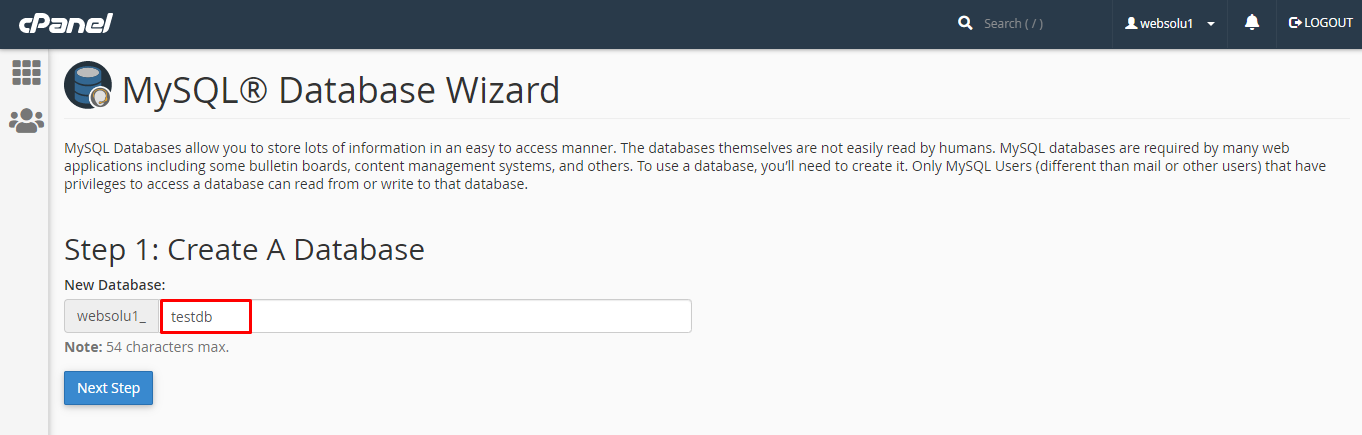
3. Then in Step 1, you will have to create a database. In the text field, give your database name and click on next step.
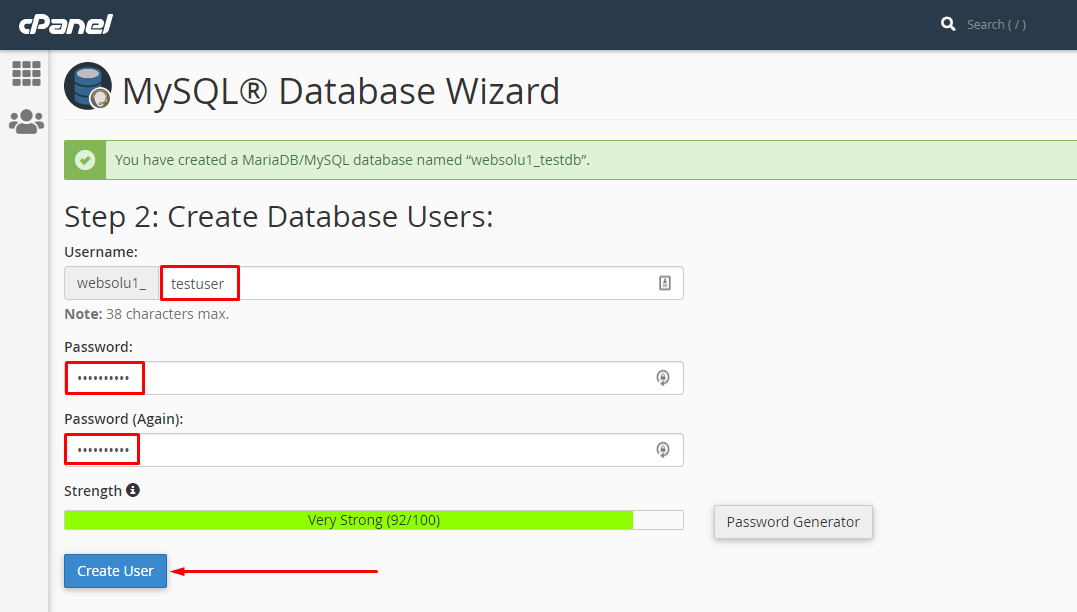
4. Then in Step 2, you will have to create a database user. Give your username and passwords here. Then click on "Create User" button.
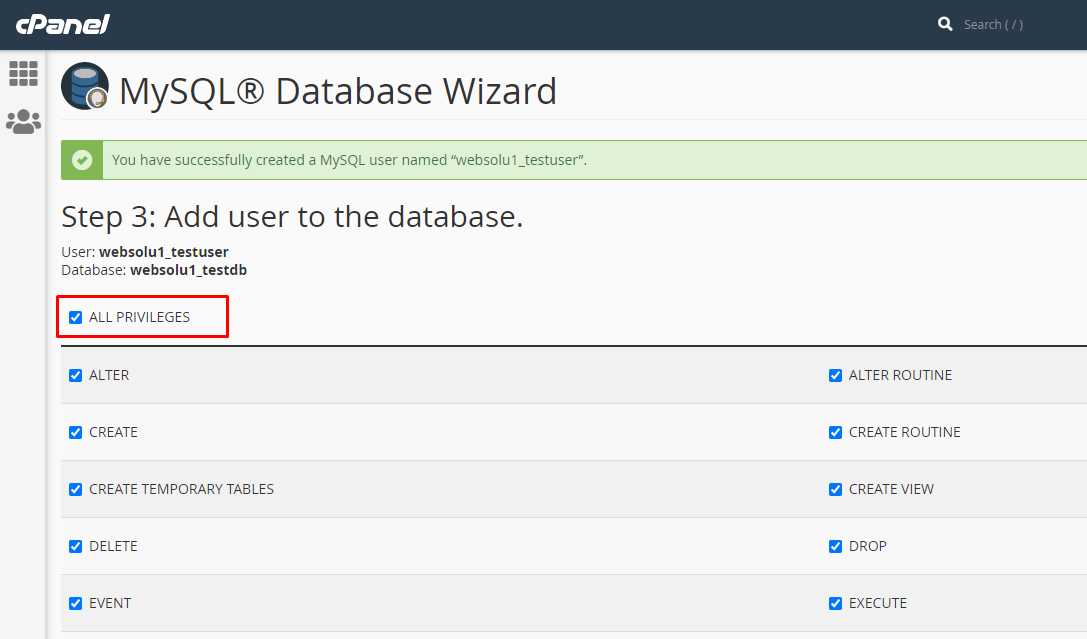
5. Now a permission page will come. Just check the tick mark on "ALL PRIVILEGES" and you will see all the options will be automatically checked.
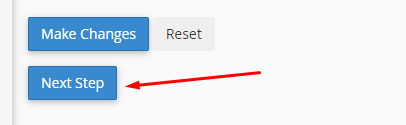
6. Click on the "Next Step" button in the bottom.
7. Database and user creation step is done.
8. All task related to database is done.
Uploading Files using Cpanel
Before uploading the Laravel API files, you must create a subdomain from your cPanel and upload your Laravel API project to that subdomain.
You must use this subdomain as your API Base URL when building:
✅ Android APK
✅ iOS IPA
✅ Web Build
Example:
Subdomain: api.yourdomain.com
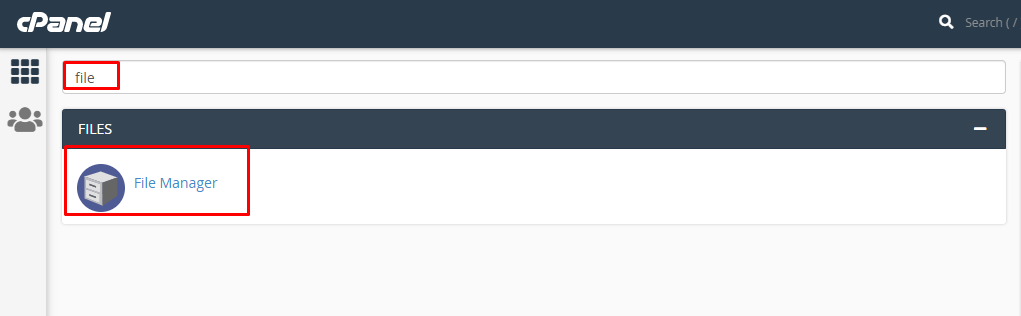
1. In the search field of your cpanel, write the word "file". You will get a "File Manager" option. Click on that option.
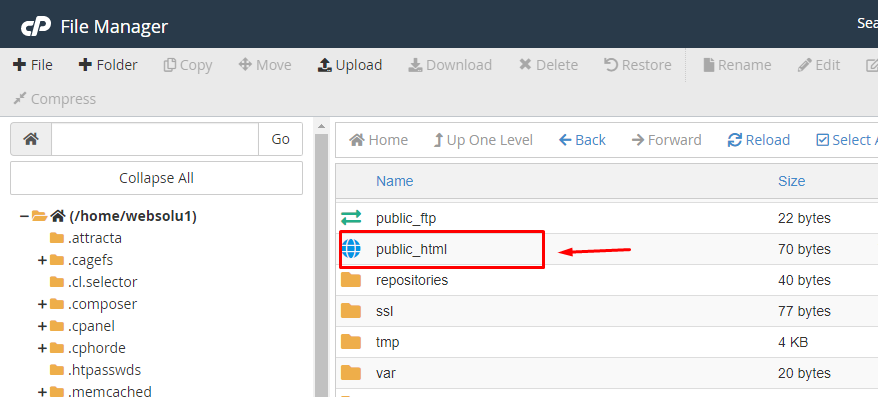
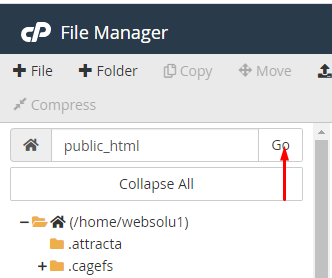
2. Search for the "public_html" and go into there.
3. Now go to the folders that you got after extracting the main zip and compress the folder "MainFiles" using any software like winrar.
4. you will find mighty-pos-api-code.zip
5. In the cpanel's "public_html", upload this zip file.
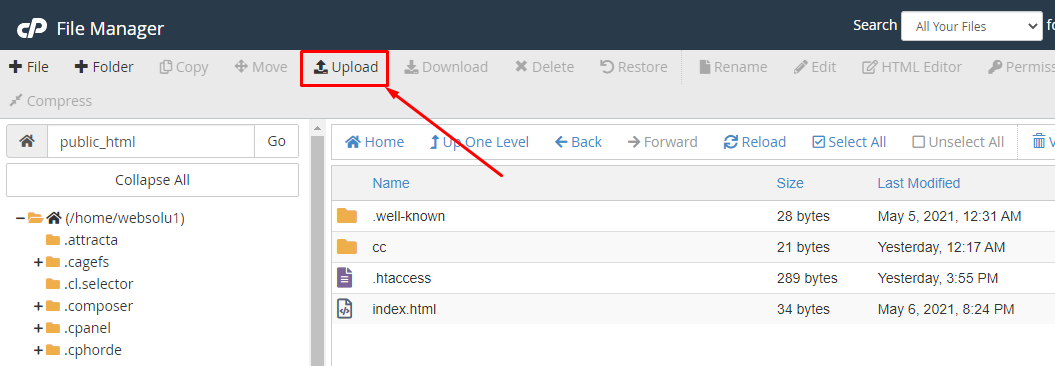
6. You will get an interface like this.
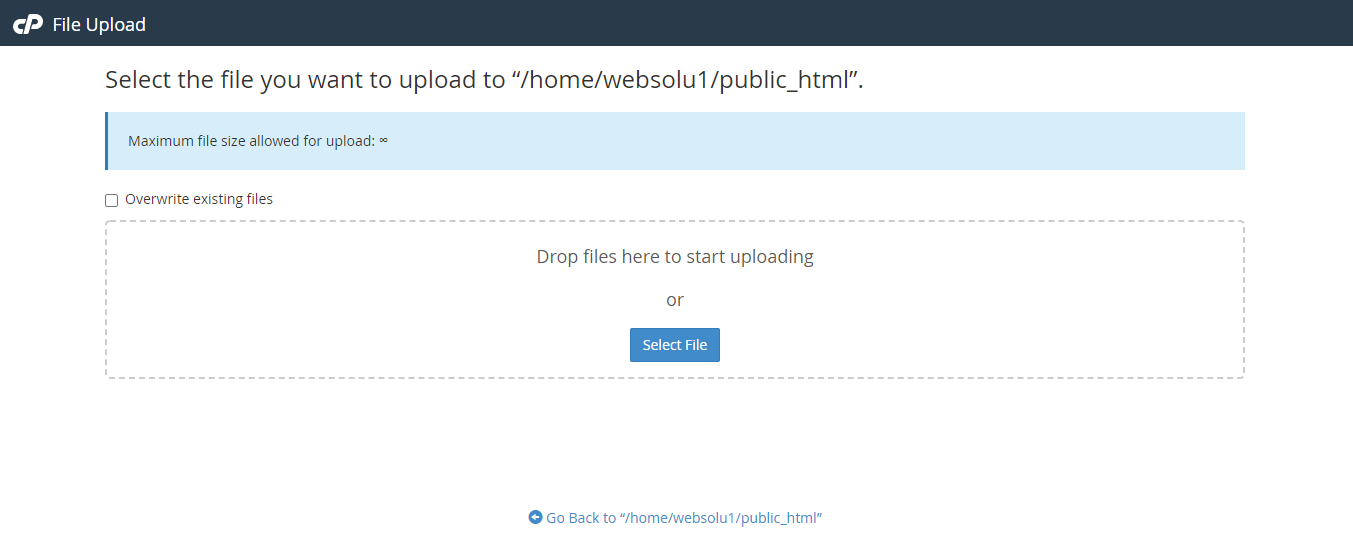
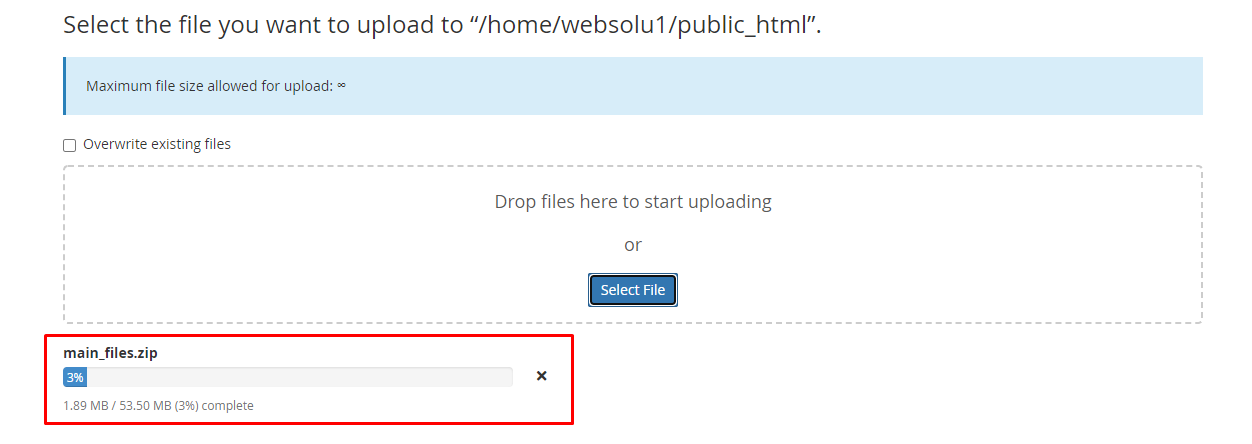
7. Drag and drop the zip file here or just click on the "Select File" and select the file from your computer. You will see a progress of uploading file. Wait until it is finished.
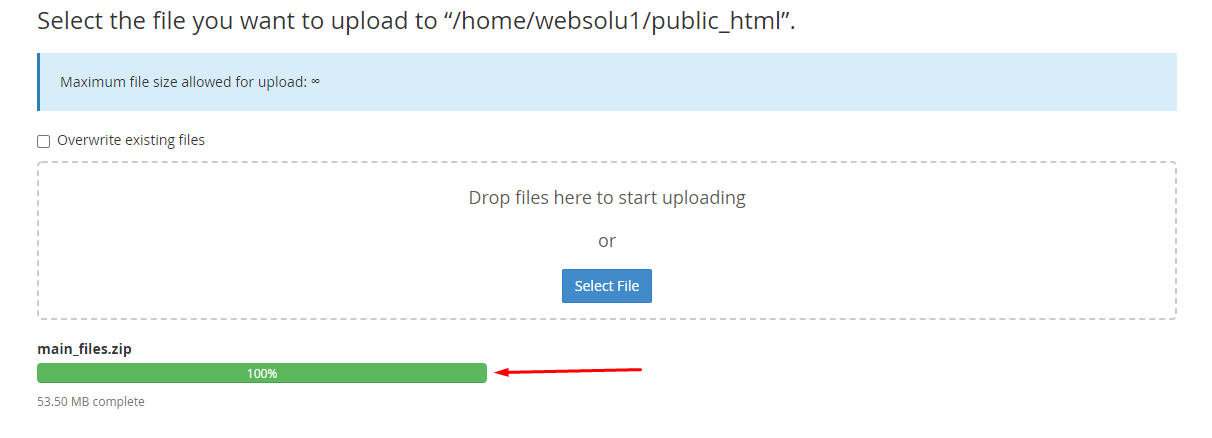
8. After finishing the upload, you will see a green bar. It indicates that upload is successful.
9. Now close the upload window. In the public_html section, press on "Go" button to refresh the page. Then you will see the zip file in the right side.
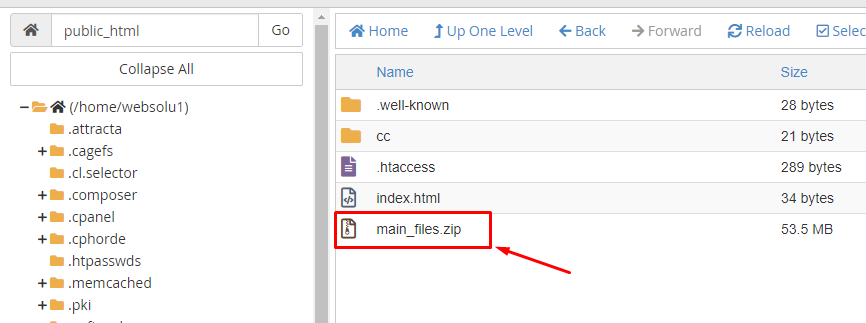
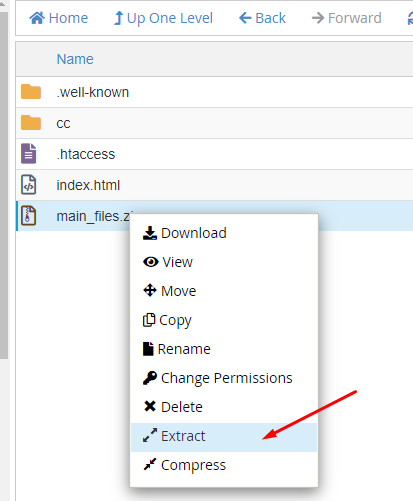
10. Do right click on that file and select "Extract" option.
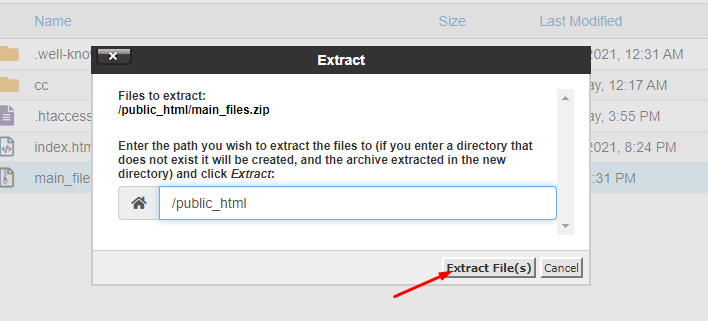
11. Press on "Extract Files" button.
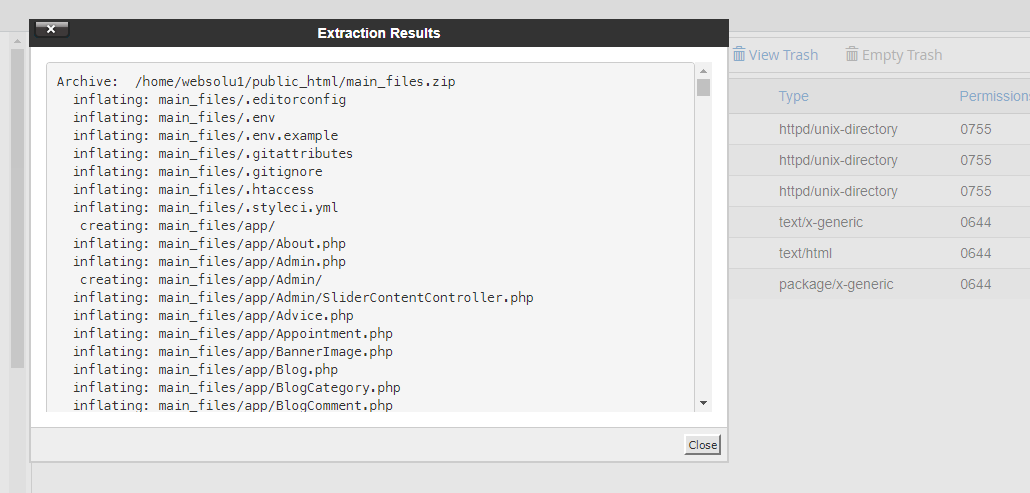
12. It will take only a few minutes. After finish, you will get a window like this.
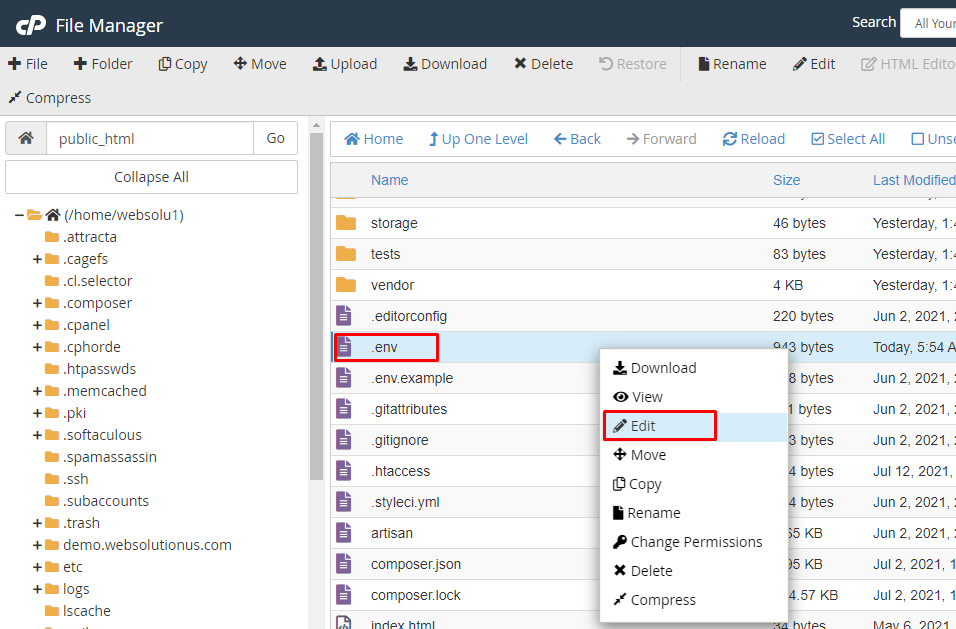
18. Right click on ".env" file and click on "Edit".
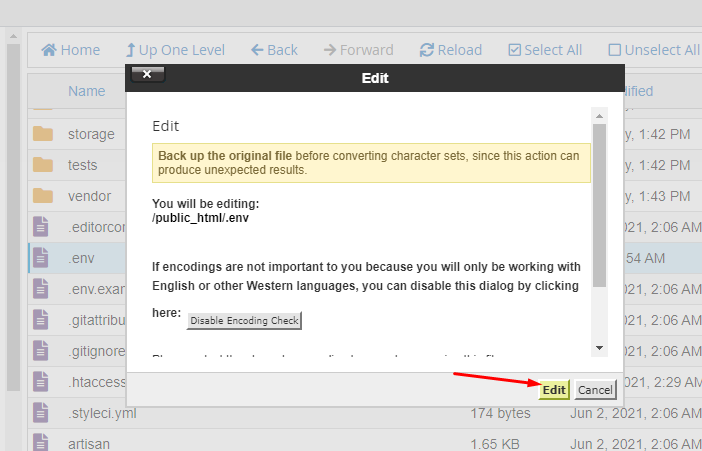
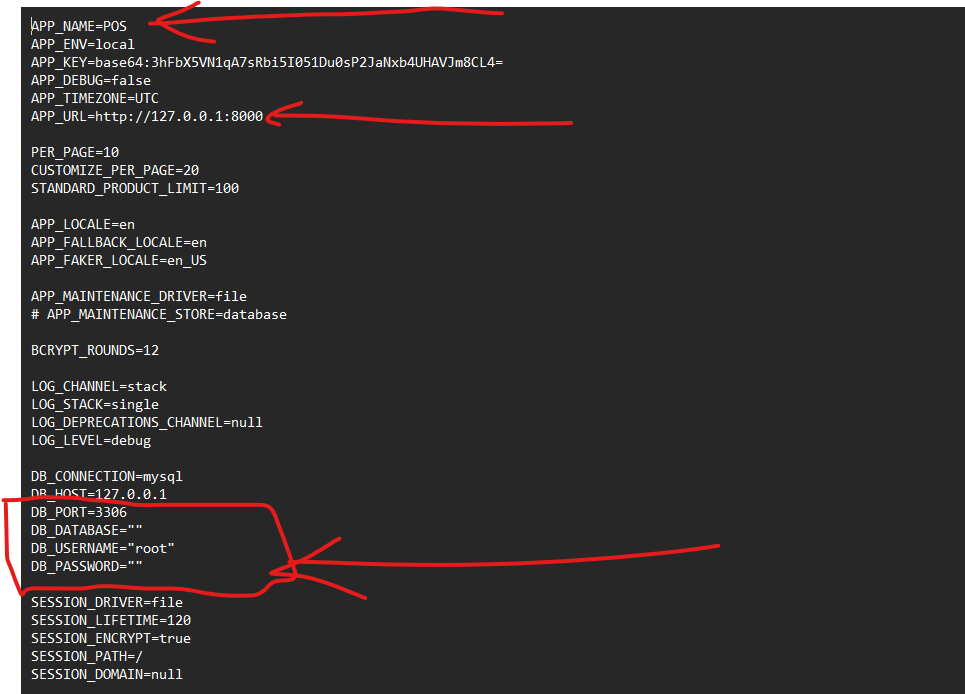
19. Now edit this file and put the app_name, app_url, database_name, database_username and database_password you created previously here. Then click on the "Save Changes" button.
Your task is done and you can use our script without any problem. :)
Uploading Files using FTP
1. Download any FTP client on your computer like "FileZilla". Search on Google by "FileZilla" or go to their website to download:
https://filezilla-project.org/
2. Use the first option to download

3. After download, install it and open. The interface will be like this:

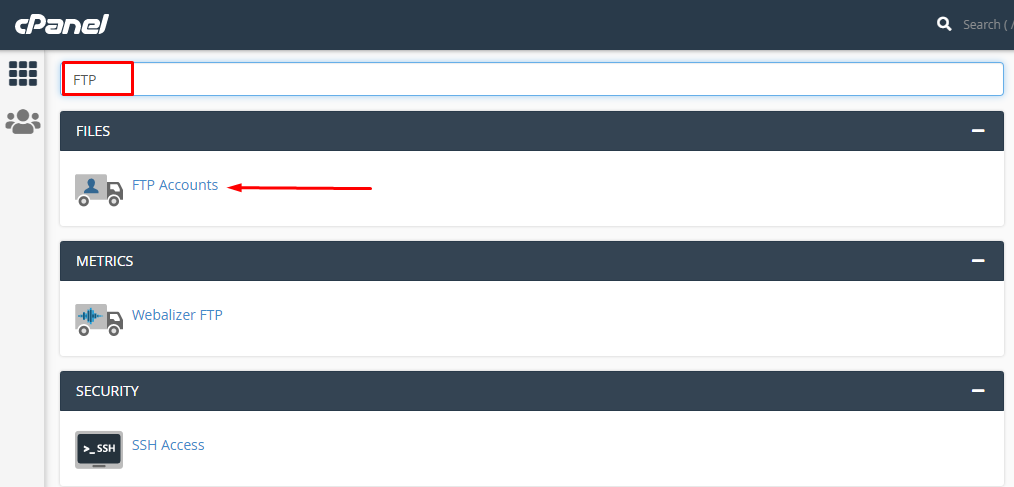
4. You can collect your FTP information contacting your hosting provider. Or, going to cpanel, you can create your FTP. In cpanel, search for "FTP".
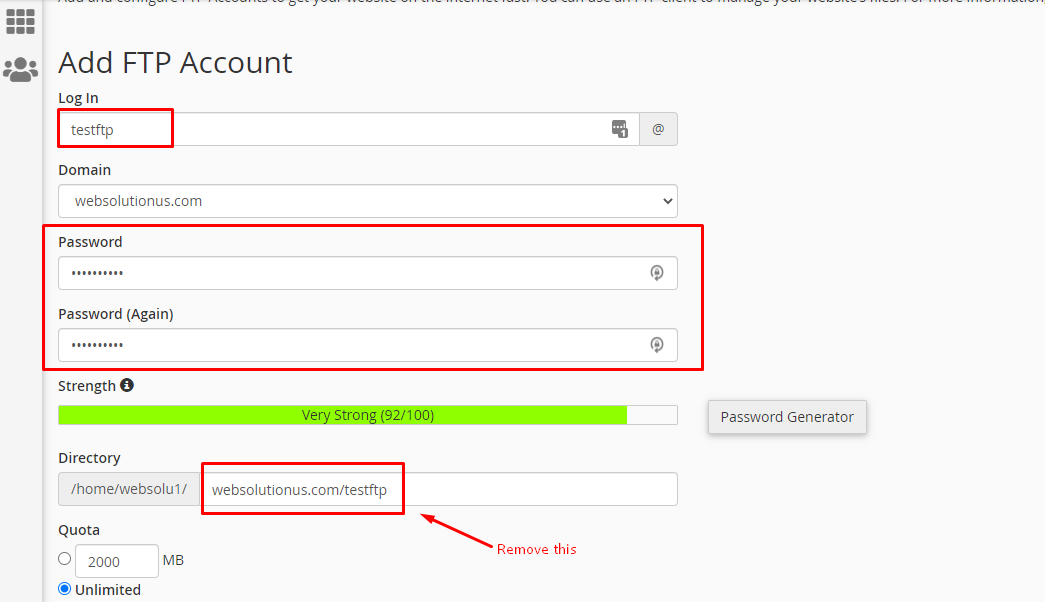
5. Put ftp username, password in the form. Become sure, you delete the marked box data in the following image.
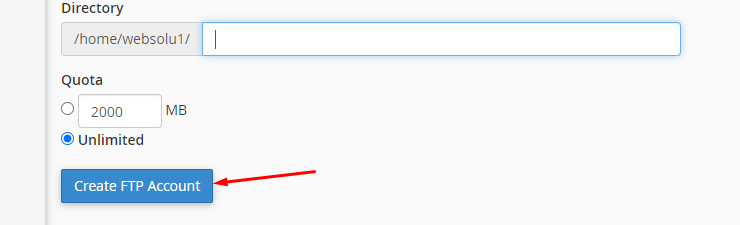
6. Click on "Create FTP Account" button.
7. Your FTP information will be like this:
FTP Host: {your hosting provider will give you host name}
FTP Port: 21
FTP Username: testftp@websolutionus.com
FTP Password: {that you gave while creating the FTP}
8. Now in filezilla put those information and click on "Quickconnect" button.
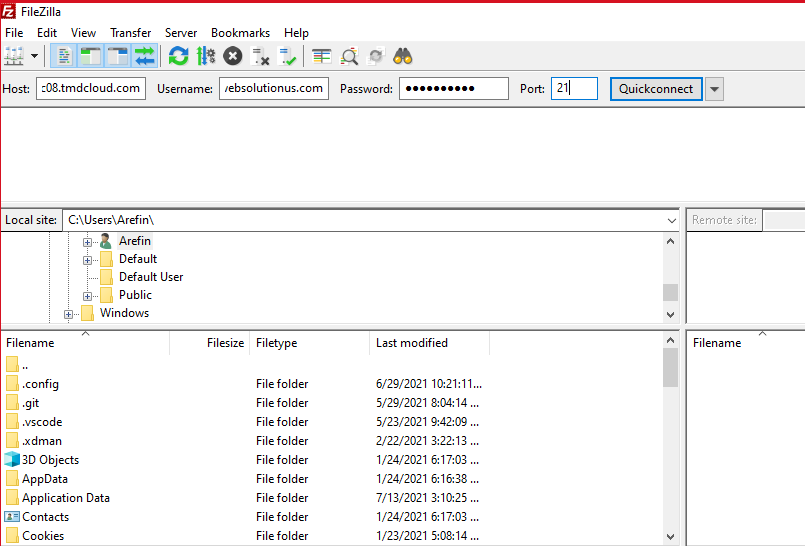
9. If connection is successful, you will get an interface like this:
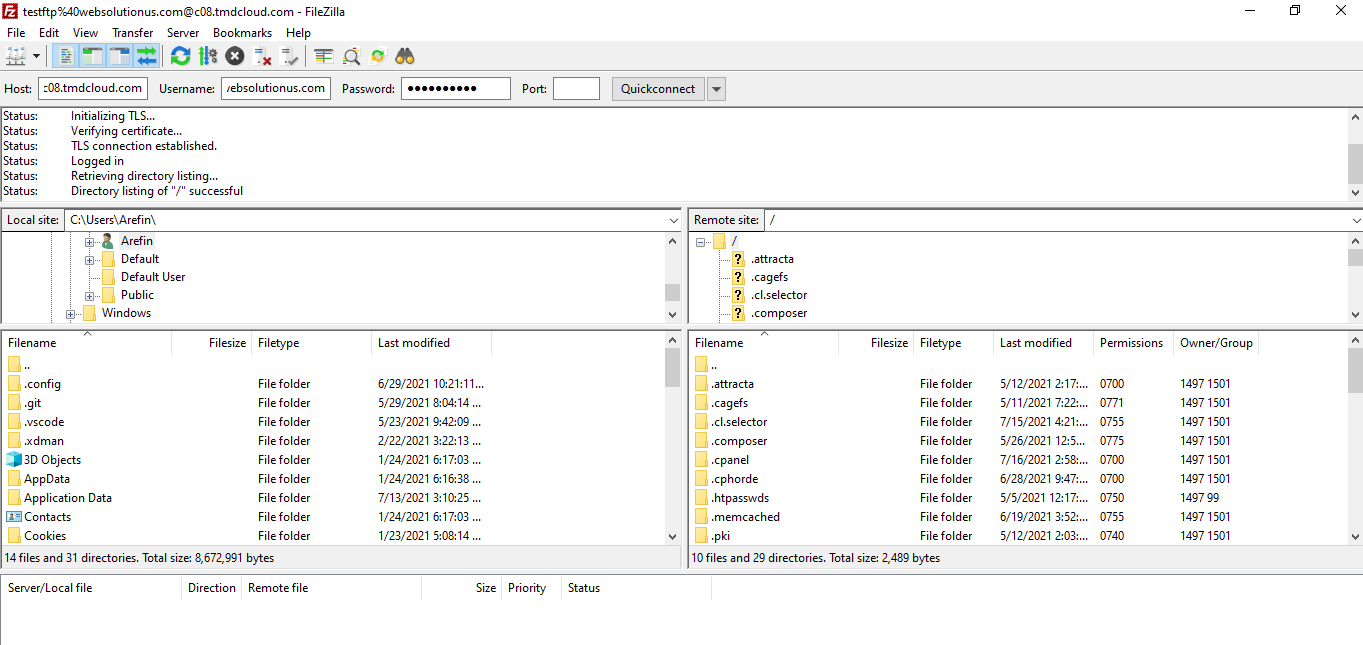
10. Now in the left side box, go to the location where you have extracted the script's file. And in the right side, go to public_html.
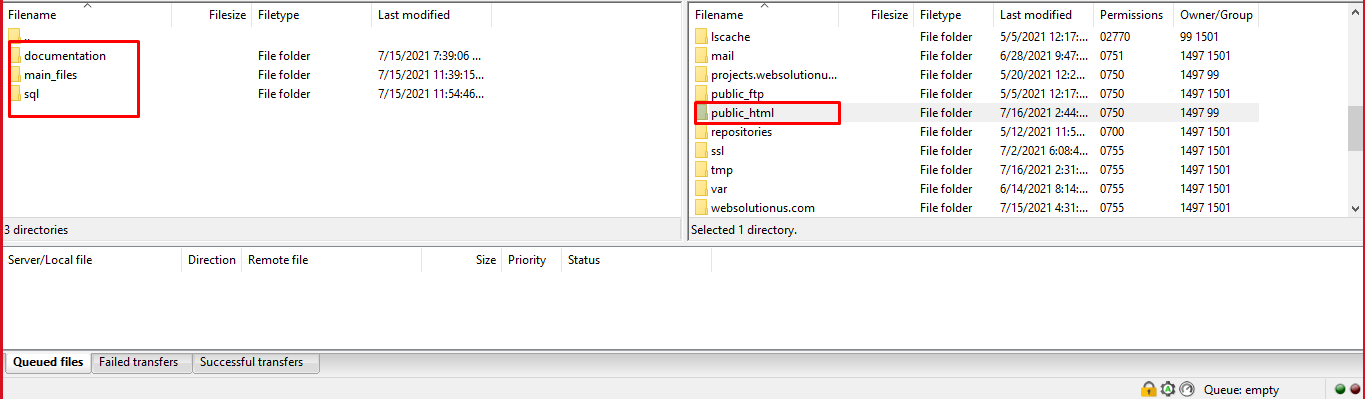
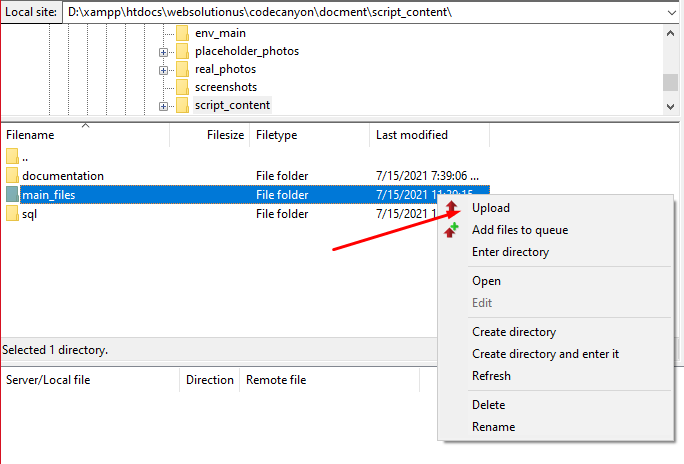
11. Then right click on the "main_files" from left side box and click on "Upload". All the files then will be uploaded into the "public_html" of the right side.
12. Search the ".env" file, right click on it and click on "View/Edit" option.
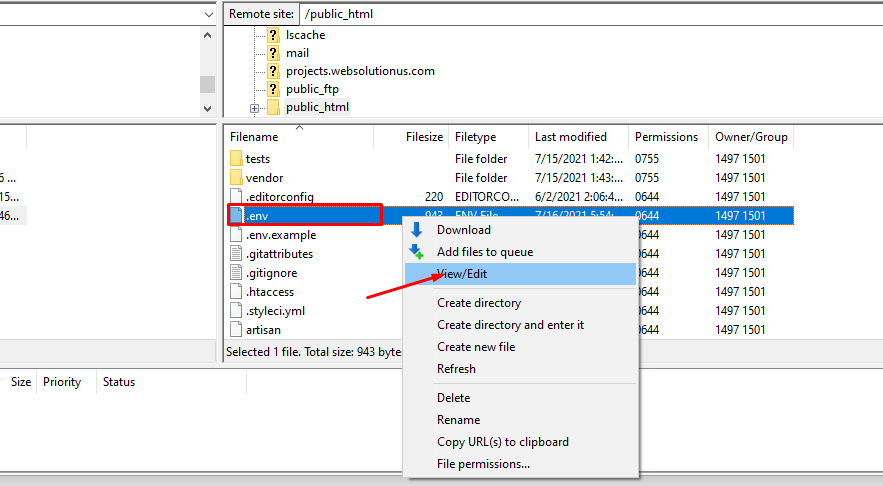
13. You will see an interface like this.
------------------Api Setup Done Now Setup App and Web--------------------
📱 App Setup
Mighty POS allows you to launch your own branded app easily with minimal configuration.
🎨 Branding & Theme Customization
- Change app color theme
- Replace logos and icons
- Apply branding with minimal configuration
🌐 Set Base URL
Open the following file:
/lib/utils/app_constant.dart
Update the base URL:
static const String baseUrl = "https://api.domain.com";
The Base URL must be your API server domain, not your website or admin panel domain.
Example:
✅ Correct: https://api.yourdomain.com
❌ Incorrect: https://yourdomain.com
Rebuild the app after updating.
Change App Name
- Edit
appNamein/lib/utils/app_constant.dart - Update label in
AndroidManifest.xml - Update app name in
Info.plist


Change App Package Name
Use IDE global replace carefully. Replace the existing package name with your new one.
 ⚠ Warning: Incorrect changes may break the build.
Change App Icon & Logo
- Generate icons from appicon.co
- Android: Replace mipmap folders in
/android/app/src/main/res - iOS: Replace
Assets.xcassetsin/ios/Runner - Replace logo in
/assets/image/logo.png
Build APK / App Bundle
flutter build apk --split-per-abi
flutter build appbundle
flutter build apk --target-platform android-arm,android-arm64,android-x64 --split-per-abi
Web Setup
Change Branding
- Logo:
/web/logo.png - Header Logo:
/web/appbarlogo.png - Favicon:
/web/favicon.png - Title & Description:
/web/index.html - PWA Name:
/web/manifest.json
Build Web
flutter build web
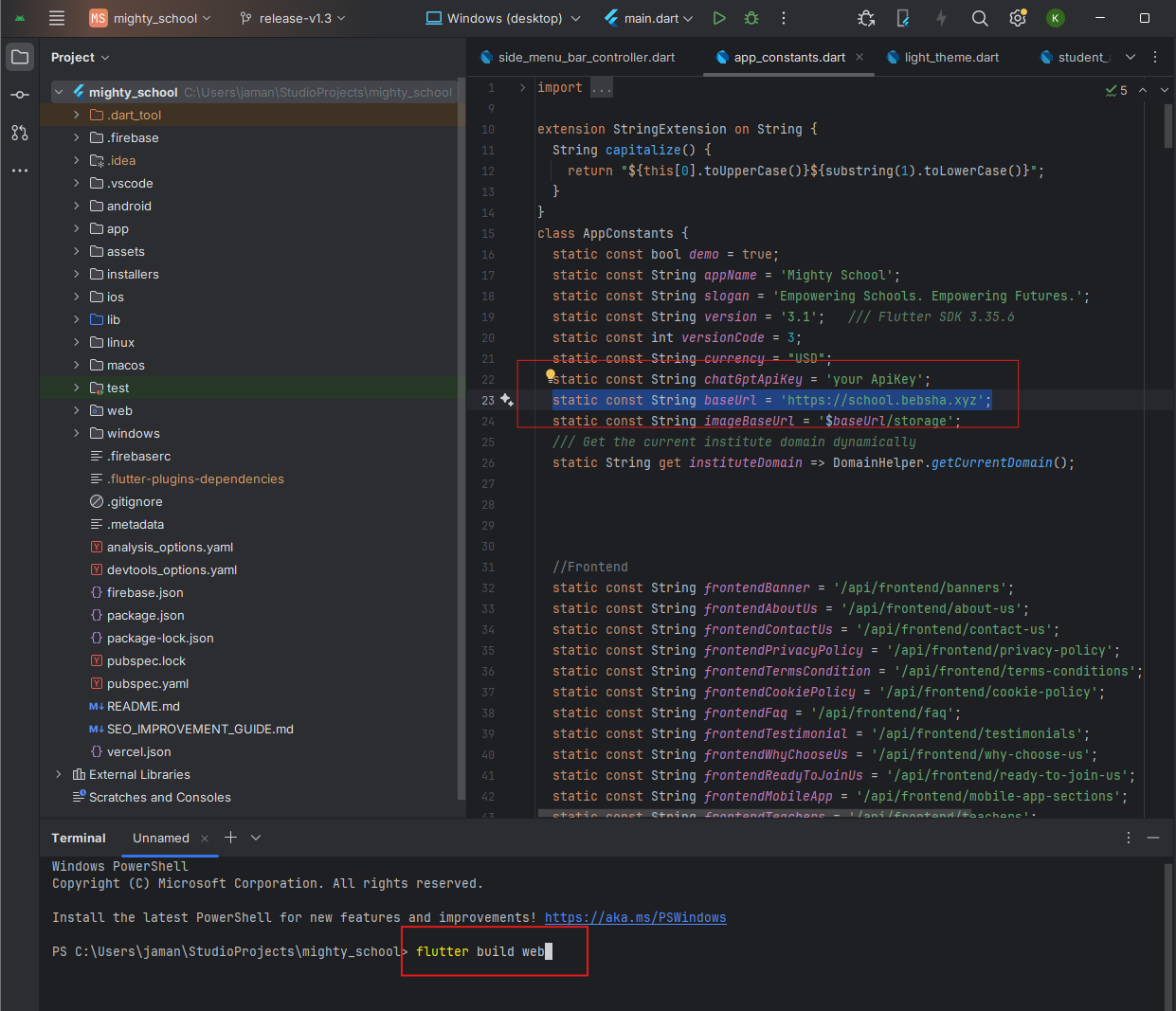
Upload files from /build/web/ to your domain (including hidden files).
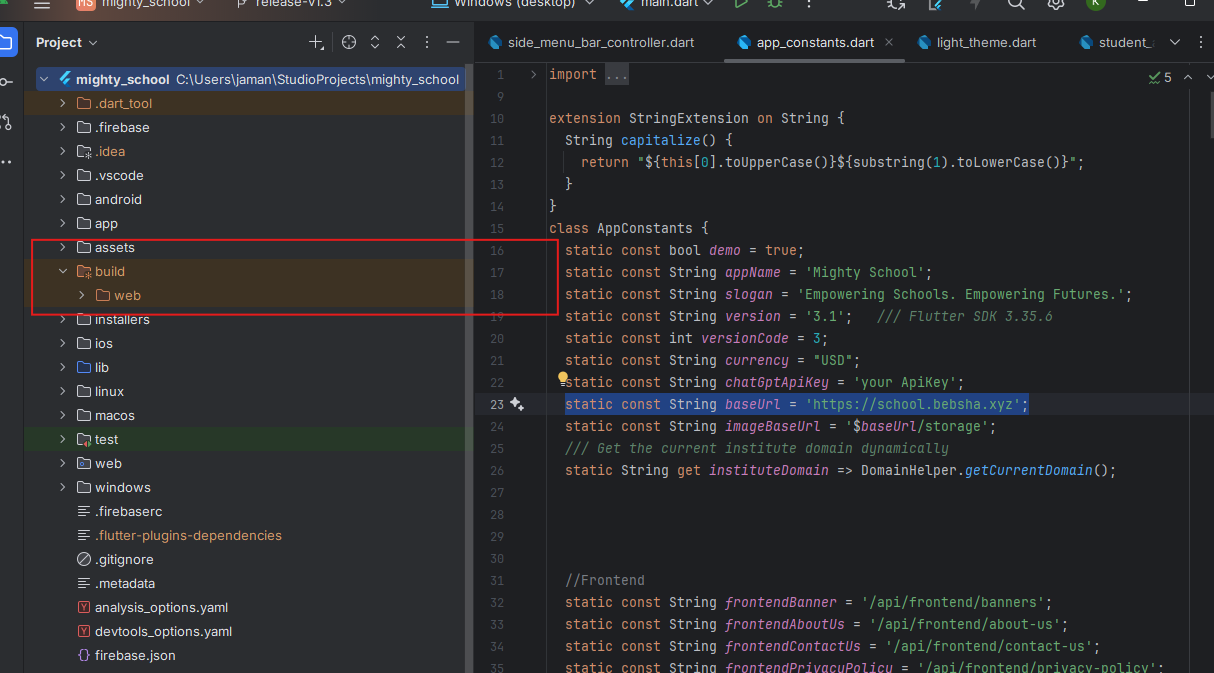
After successfully build. open /build/web folder. You will see web folder. Zip it and upload to your server.
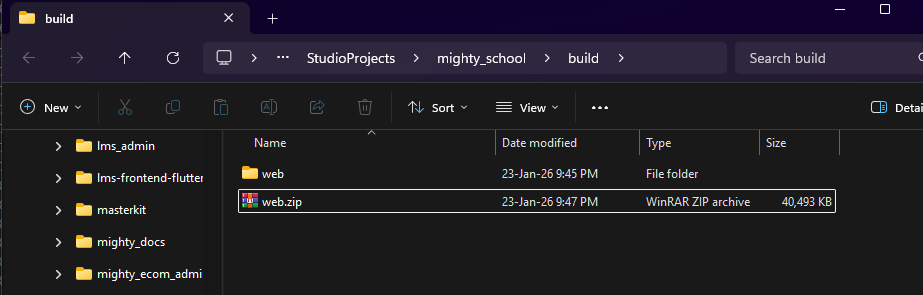
Yor are Done! Your web is live now.